iot-walkthrough
Windows 10 IOTCore Walkthrough
Installing IoT templates and deploying a background app
Introduction
Receiving, transmitting and analyzing data are essential tasks in IoT scenarios. Some devices are used exclusively for receiving and transmitting data securely; thus, user interaction is not always desired. We will create a background app that runs “headless” (without the need of a keyboard, mouse or monitor) and sends data to Azure.
The background application should be capable of:
- Collecting weather data
- Sending data to Azure
- Receiving user configurations from Azure (for example, changing the frequency that sensor data gets collected)
Installation
Visual Studio 2017 with Universal Windows Platform support will be used. When installing VS2017, make sure Universal Windows Platform development is selected.
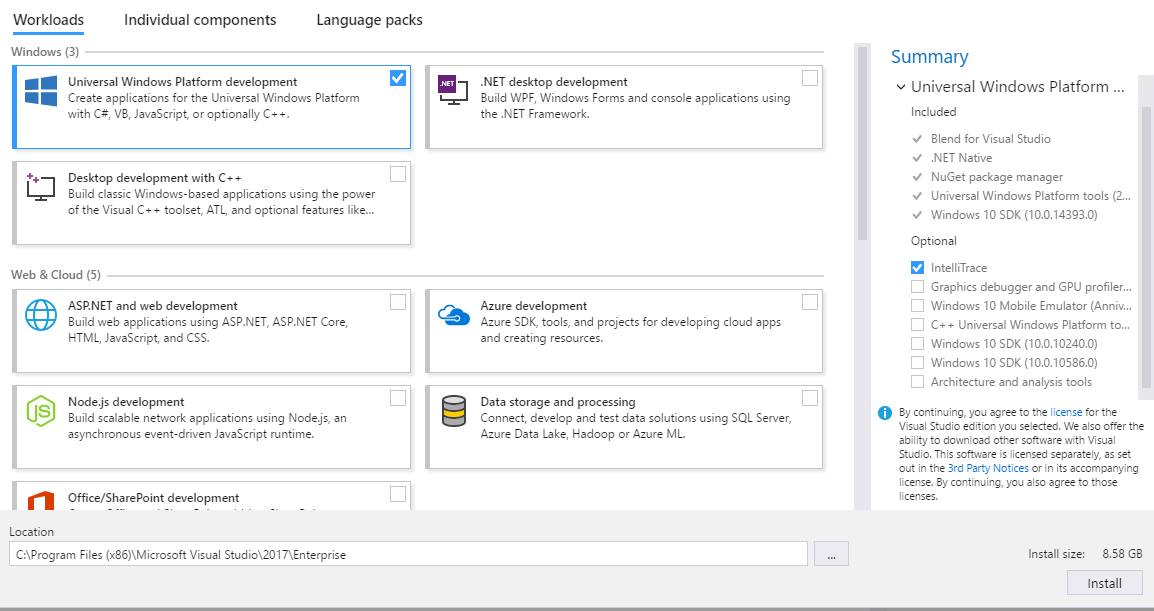
Install the Windows IoT Core Project Templates package, which provides a template for background applications on IoT. More information on background applications can be found here.
Creating a monitoring background application
We will create a simple application background application to run code at a fixed interval. Open Visual Studio and choose File > New > Project…. On the New Project window, pick the C# background application template and choose a name for the project.
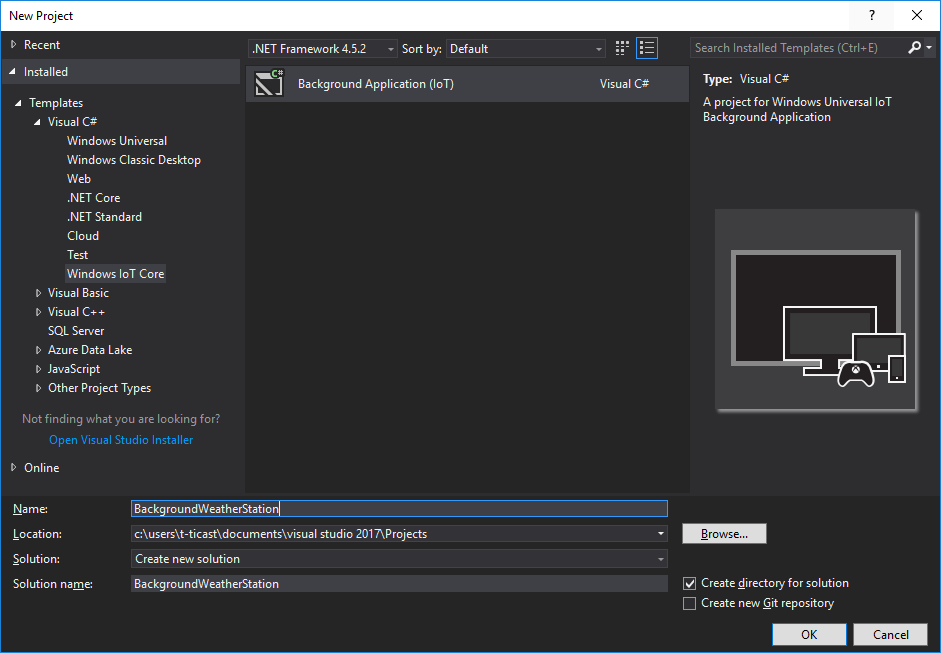
The default template runs StartupTask (which is a background task). The Run method should be overridden with code to be executed by the app.
We will use a ThreadPoolTimer to run a function at fixed intervals. But we must first grab a deferral for this task, since the app is considered done when the Run method returns.
using System;
using Windows.ApplicationModel.Background;
using Windows.System.Threading;
using System.Diagnostics;

namespace BackgroundWeatherStation
{
    public sealed class StartupTask : IBackgroundTask
    {
        private BackgroundTaskDeferral _deferral;
        private ThreadPoolTimer _timer;

        public void Run(IBackgroundTaskInstance taskInstance)
        {
            // Grab a deferral to keep the app alive once Run returns.
            _deferral = taskInstance.GetDeferral();
            _timer = ThreadPoolTimer.CreatePeriodicTimer(LogSensorData, TimeSpan.FromSeconds(5));
        }

        private void LogSensorData(ThreadPoolTimer timer)
        {
            Debug.WriteLine("Running on a timer");
        }
    }
}
To run this code on a device:
- Choose Remote Machine as the target of deployment using the menu bar of Visual Studio.
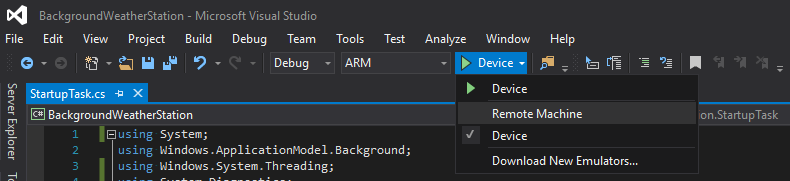
- Pick you device from the list (or enter it’s IP address manually).
- Run through the menu bar (or press F5).
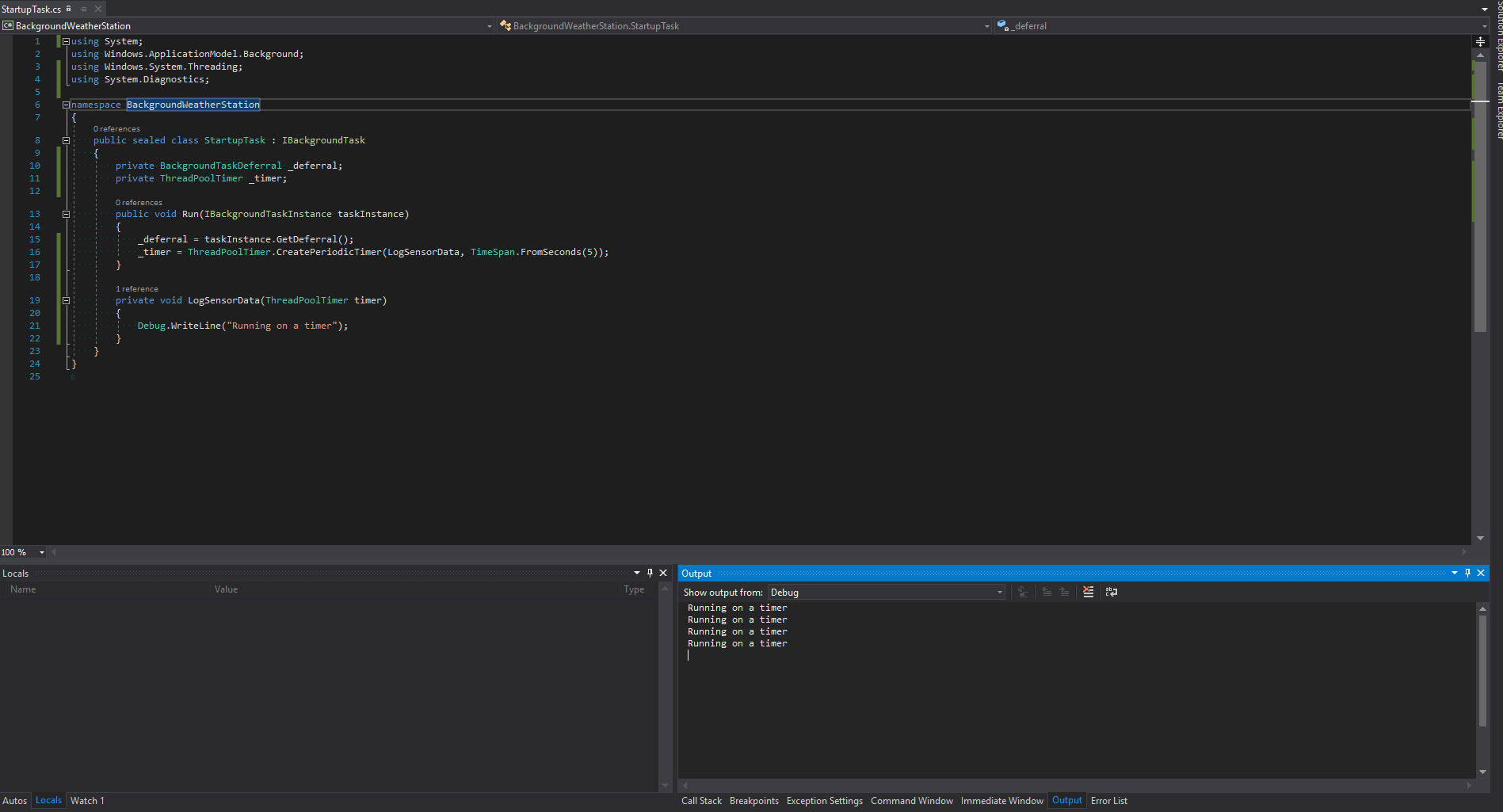
The message should be printed on the output window every 5 seconds: